
Posting Images Guide
- Chris CW
-
 Topic Author
- Offline
- Owner / Admin
-

Less
More
17 years 8 months ago #53
by Chris CW
Posting Images Guide was created by Chris CW
Theres 2 ways to post images on Warwickshire Modified, the first and best is with the use of a image hosting (hosting simply means storage) site such as Photobucket (
www.photobucket.com
or
http://photobucket.com/iphone
for iPhone users).
1. External Image Sites
A. First step is to head to the site and create an account by clicking JOIN NOW. Follow all the nessercery steps to create and activated your account.
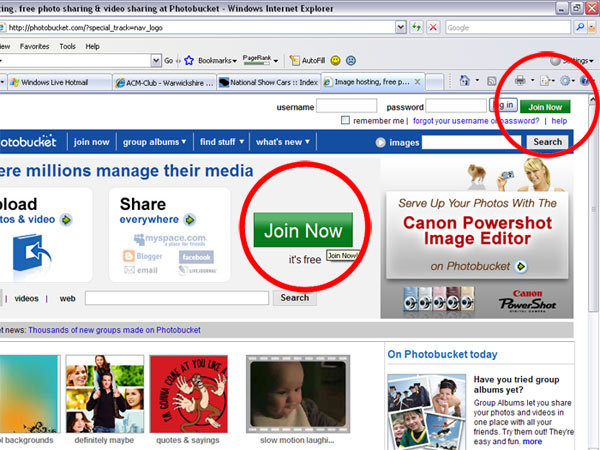
B. Once youve done this and logged in you'll most likely be taken to this page, if not, find "MY ALBUMS" on screen and it should take you there. You can now choose files to be uploaded onto your photobucket. Click this, and find your photos stored on your PC
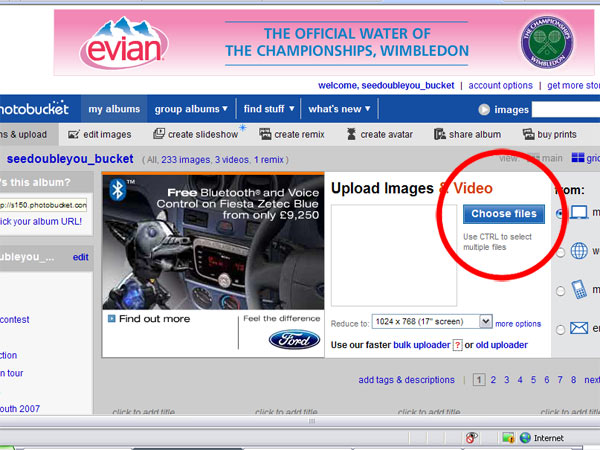
C. It will then upload your image, and if successful will display a green message saying (e.g.) "1 OF 1 IMAGES UPLOADED".
D. You can then scroll down that page to find your images available. Underneath you will find all the codes you need to display your image elsewhere (on this forum etc.). The code you need for forums is at the bottom, labelled as "IMG Code".
E. If you simply click the text area beside it, it will automatically copy the code for you (as Control + C would).
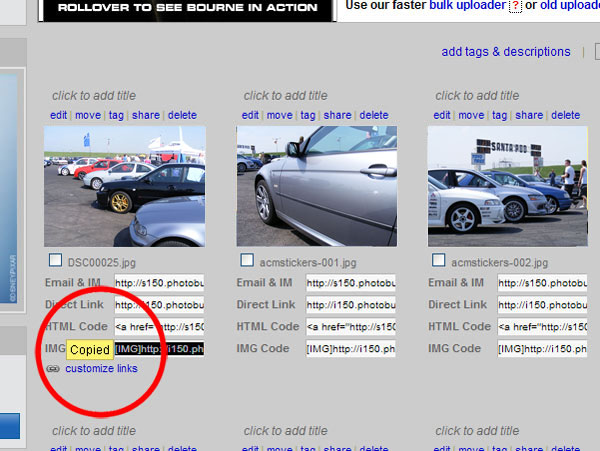
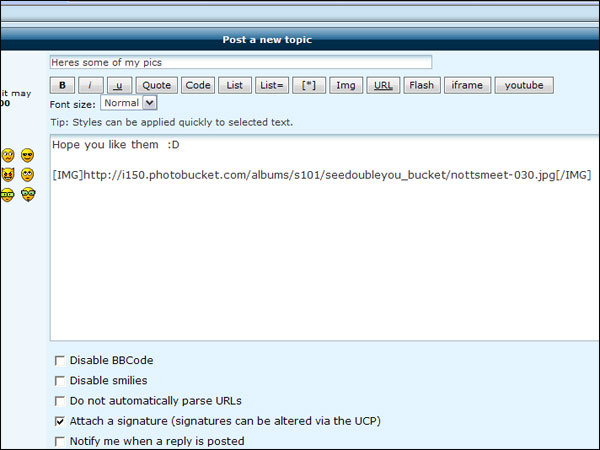
You then paste this code (Ctl + V, or Edit menu >> Paste) into your forum post/topic. Simply as that! Repeat if you wish to add more images that you want to upload, or if you uploaded them all in one go repeat the instructions in step E
HINT: When viewing all your images on photobucket, you can click "EDIT" just above each one to get options to resize them etc. Resizing can be good for making the images fit on a page, and reload quicker. The most common size for forums is 640 x 480 (down as "Message Board" in Photobuckets Preset Sizes).
2. Image Attachment (Elite Members ONLY!)
Simply create your post / topic, then at the end scroll down to the options and clikc the "Upload attachment" option. Find your image on your PC and upload it. Simple. The image will be attached to your post.
If it says your image is too large for an attachment, use the WM Image Resizer to change the image to a small size, and this will make it a smaller file size. Head to http://www.warwickshiremodified.co.uk/resize/ and click browse to find your image on your computer, then select the size you want to change it to (we recommend a width of 640 or 800), and click Submit. Wait afew moments (progress is show by your loading bar at the bottom of page) and it will give you the option to download the image. Do this, and then upload that image to the attachment feature. Done!
1. External Image Sites
A. First step is to head to the site and create an account by clicking JOIN NOW. Follow all the nessercery steps to create and activated your account.
B. Once youve done this and logged in you'll most likely be taken to this page, if not, find "MY ALBUMS" on screen and it should take you there. You can now choose files to be uploaded onto your photobucket. Click this, and find your photos stored on your PC
C. It will then upload your image, and if successful will display a green message saying (e.g.) "1 OF 1 IMAGES UPLOADED".
D. You can then scroll down that page to find your images available. Underneath you will find all the codes you need to display your image elsewhere (on this forum etc.). The code you need for forums is at the bottom, labelled as "IMG Code".
E. If you simply click the text area beside it, it will automatically copy the code for you (as Control + C would).
You then paste this code (Ctl + V, or Edit menu >> Paste) into your forum post/topic. Simply as that! Repeat if you wish to add more images that you want to upload, or if you uploaded them all in one go repeat the instructions in step E
HINT: When viewing all your images on photobucket, you can click "EDIT" just above each one to get options to resize them etc. Resizing can be good for making the images fit on a page, and reload quicker. The most common size for forums is 640 x 480 (down as "Message Board" in Photobuckets Preset Sizes).
2. Image Attachment (Elite Members ONLY!)
Simply create your post / topic, then at the end scroll down to the options and clikc the "Upload attachment" option. Find your image on your PC and upload it. Simple. The image will be attached to your post.
If it says your image is too large for an attachment, use the WM Image Resizer to change the image to a small size, and this will make it a smaller file size. Head to http://www.warwickshiremodified.co.uk/resize/ and click browse to find your image on your computer, then select the size you want to change it to (we recommend a width of 640 or 800), and click Submit. Wait afew moments (progress is show by your loading bar at the bottom of page) and it will give you the option to download the image. Do this, and then upload that image to the attachment feature. Done!
Please Log in or Create an account to join the conversation.
- Searle
- Offline
- Fresh WM User
-

Less
More
- Posts: 14
- Thank you received: 0
17 years 2 months ago #22249
by Searle
[color=#000000:1by9otao][b:1by9otao][i:1by9otao]If In Doubt.....Just Whack It Out[/i:1by9otao][/b:1by9otao][/color:1by9otao]
Replied by Searle on topic Posting Images Guide
How Do I Get A Picture Of My Car...
<<<<<<.....Like Where It Says My Name On The Left OnSide Of What I Post.?
<<<<<<.....Like Where It Says My Name On The Left OnSide Of What I Post.?
[color=#000000:1by9otao][b:1by9otao][i:1by9otao]If In Doubt.....Just Whack It Out[/i:1by9otao][/b:1by9otao][/color:1by9otao]
Please Log in or Create an account to join the conversation.
- Chris CW
-
Topic Author
- Offline
- Owner / Admin
-
17 years 2 months ago #22251
by Chris CW
Replied by Chris CW on topic Posting Images Guide
You'll need to edit the image to fit, under 125px
If your unsure of how to do this, just post an image or email it to us and we'll do it for you
(my email <!-- e --><a href="mailto:chris@warwickshiremodified.co.uk]chris@warwickshiremodified.co.uk[/url]<!-- e -->)
If your unsure of how to do this, just post an image or email it to us and we'll do it for you
(my email <!-- e --><a href="mailto:chris@warwickshiremodified.co.uk]chris@warwickshiremodified.co.uk[/url]<!-- e -->)
Please Log in or Create an account to join the conversation.
- Chris CW
-
Topic Author
- Offline
- Owner / Admin
-
17 years 2 months ago #25430
by Chris CW
Replied by Chris CW on topic Posting Images Guide
There is now a simple image resizer here;
http://www.warwickshiremodified.co.uk/resize/
Use this to make images smaller in size (640 or 800 recommended) and therefore making them a smaller file size so you can upload them as an attachment to posts, or just to create an avatar (select 125 width).
Use this to make images smaller in size (640 or 800 recommended) and therefore making them a smaller file size so you can upload them as an attachment to posts, or just to create an avatar (select 125 width).
Please Log in or Create an account to join the conversation.
- sal
- Offline
- True WM Regular
-

Less
More
- Posts: 1923
- Karma: 1
- Thank you received: 0
17 years 2 months ago #25436
by sal
Replied by sal on topic Posting Images Guide
you can also use an image resizer powertoy for the windows, from which i mean you just right click the picture you want to upload and then click the image resizer button.
theres one for the xp and one for the vista (both different)
xp users: http://www.microsoft.com/windowsxp/Down ... rtoys.mspx , the download can be found on the right hand side of the screen
vista users: http://www.vso-software.fr/products/image_resizer/
if its then a problem with the size of the image then as it the dimension, then i just go onto photoshop and then click on file and then "save for web & devices"
hope that has helped people.
theres one for the xp and one for the vista (both different)
xp users: http://www.microsoft.com/windowsxp/Down ... rtoys.mspx , the download can be found on the right hand side of the screen
vista users: http://www.vso-software.fr/products/image_resizer/
if its then a problem with the size of the image then as it the dimension, then i just go onto photoshop and then click on file and then "save for web & devices"
hope that has helped people.
Please Log in or Create an account to join the conversation.
- Chris CW
-
Topic Author
- Offline
- Owner / Admin
-
17 years 2 months ago #25439
by Chris CW
Replied by Chris CW on topic Posting Images Guide
Thanks for that Sal, useful stuff there 
Please Log in or Create an account to join the conversation.
- sal
- Offline
- True WM Regular
-
Less
More
- Posts: 1923
- Karma: 1
- Thank you received: 0
17 years 2 months ago #25450
by sal
Replied by sal on topic Posting Images Guide
no worries chris...
Please Log in or Create an account to join the conversation.
- pughy1988
- Offline
- True WM Regular
-
Less
More
- Posts: 609
- Thank you received: 0
16 years 5 months ago #110099
by pughy1988
[img:3n2ifadi]http://offsite.warwickshiremodified.co.uk/signatures/pughy1988.jpg[/img:3n2ifadi]
Replied by pughy1988 on topic Posting Images Guide
[img:3n2ifadi]http://offsite.warwickshiremodified.co.uk/signatures/pughy1988.jpg[/img:3n2ifadi]
Please Log in or Create an account to join the conversation.
- Chris CW
-
Topic Author
- Offline
- Owner / Admin
-
16 years 5 months ago #110125
by Chris CW
Replied by Chris CW on topic Posting Images Guide
All you missed there pughy was a [ at the start!
Edited to this;
Does this;

Edited to this;
[IMG]http://i766.photobucket.com/albums/xx305/pughy1988/Myboot.jpg[/IMG]Does this;
Please Log in or Create an account to join the conversation.
- shanners
- Offline
- True WM Regular
-
16 years 5 months ago #110215
by shanners
Consuming your bandwidth since 16.02.09 -> I'm so sorry
Replied by shanners on topic Posting Images Guide
Just disable attachments altogether - Then they'd HAVE to learn!  <!-- s:lol: --><img src="{SMILIES_PATH}/icon_lol.gif" alt="
 " title="Laughing" /><!-- s:lol: -->
<!-- s:lol: --><img src="{SMILIES_PATH}/icon_lol.gif" alt="" title="Laughing" /><!-- s:lol: --> Consuming your bandwidth since 16.02.09 -> I'm so sorry
Please Log in or Create an account to join the conversation.